What's included
Checkout the files that you'll see upon downloading
Once you download the template, you can see a folder with several files and sub folders. You can read description of some important files in continue.
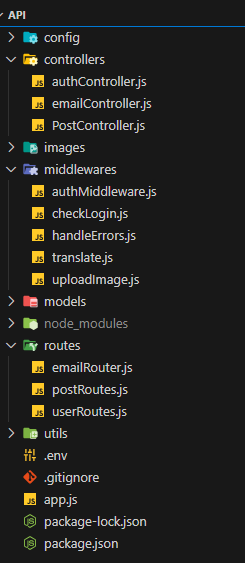
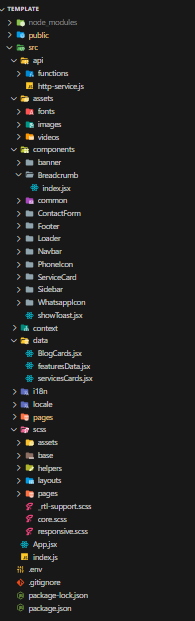
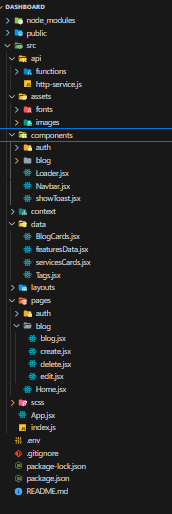
Thank you for purchasing our template. We hope that you find all your questions regarding this Template answered in this Documentation as much in details as possible. However, if you still need support, do not hesitate to contact us at our support forum for this Template. If you have any questions that are beyond the scope of this help file, please feel free to email me. Thanks so much!
DeliverEase – Motor Delivery, User-Friendly Interface, Clean Design, Bootstrap is a modern and versatile React template that stands at the forefront of web development, harnessing the power of cutting-edge technologies. Crafted with precision and powered by React 18.2+, this template offers a robust foundation for building dynamic and interactive web applications. Leveraging the capabilities of Bootstrap 5.3.2, react-i18next 13.2 ... empowers developers with a toolkit that is both feature-rich and future-proof.
DeliverEase is your ultimate solution for streamlining motor delivery operations seamlessly integrated with robust blogging capabilities. Crafted on the solid foundation of the MERN (MongoDB, Express.js, React.js, Node.js) stack, DeliverEase empowers businesses in the motor delivery industry to elevate their online presence while effortlessly managing content creation and delivery logistics.
Follow the steps below to setup your site template:
npm install to install all packages,
and then type npm start to open the project. The project will display in
your browser at this link: http://localhost:3000/ as shown in the images below:
Once you download the template, you can see a folder with several files and sub folders. You can read description of some important files in continue.
To change the logo, you can easily replace the image in the 'logo' folder located within the 'images' folder, which is inside the 'assets' folder.
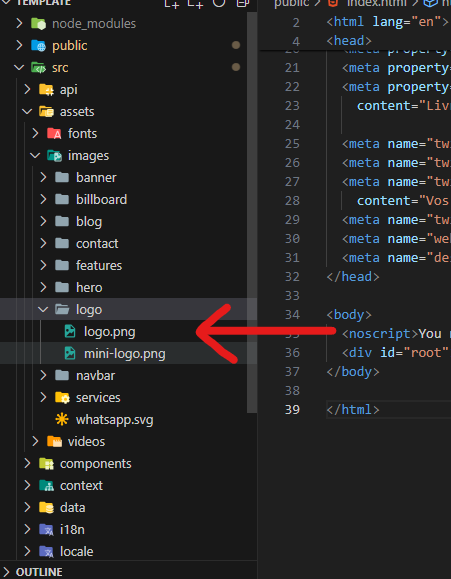
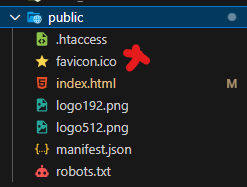
To change favicon go to public folder then index.html

DeliverEase uses 2 fonts: Open Sans & Poppins from the Google Fonts Library. You can change the fonts by following code
 @import url('https://fonts.googleapis.com/css?family=Open+Sans');
 @import url('https://fonts.googleapis.com/css?family=Poppins:400,500,600,700,800');
We would really love to take this opportunity to appreciate guys whose items were helpful to us to make DeliverEase a really beautiful theme for our awesome users: